Viral “Santa Call” Videos on Android: Make the Christmas Trend with Evoke
Create an “Incoming Call from Santa” style clip from a single photo. On Android, Evoke’s Santa Call Live Photo template adds festive motion and a call-screen vibe, exporting an MP4 to share.
- Why “Santa Call” Videos Go Viral
- What to Prepare (Best Inputs)
- Step-by-Step: Make a Santa Call Clip in Evoke
- Template Previews
- Posting Ideas (So It Actually Gets Shared)
- Frequently Asked Questions
- What is a “Santa Call” video?
- Do I need a real video to start?
- How long does it take to generate an Animated Santa Call Android?
- Can I make a Fake Santa Call From Photo if it's blurry?
- What format can I share?
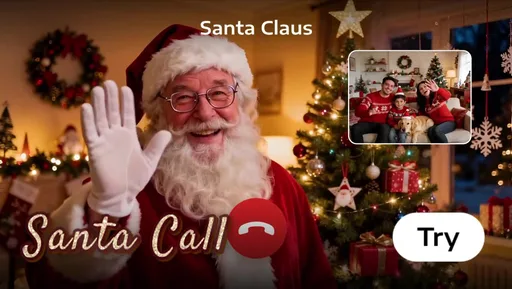
“Santa Call” clips are everywhere during the holidays: a short video that looks like an incoming call from Santa, with subtle facial motion that makes it feel real enough to spark a reaction. With Evoke on Android, you can create this style from a single image using Live Photo (Animate)—no timeline editing, no complicated setup. It's the ultimate Santa Call Video Maker.
Evoke AI uses advanced artificial intelligence to map facial landmarks, allowing it to Animate Santa Face AI styles with realistic blinks, nods, and smiles.
Quick answer: Open the Santa Call template in our Best AI Christmas Video tool, upload a clear front-facing photo (Santa, a costume selfie, or a festive portrait), generate the Live Photo clip, and export an MP4 ready for sharing.
Why “Santa Call” Videos Go Viral
This Viral Christmas Trend AI works because it feels like “proof” in a familiar format:
- Instant context: Everyone recognizes a call screen at a glance.
- Short + replayable: Perfect for Stories and looping feeds on TikTok and Instagram.
- Tiny motion = big realism: Blinking, micro-smiles, and subtle head movement sell the effect. Using the Santa Call Video Maker makes it believable.
What to Prepare (Best Inputs)
You’ll get the most believable Animated Santa Call Android result with:
- A sharp, well-lit face (use Enhance to improve photo quality if the room was dim).
- A front-facing subject (3/4 angle is okay; extreme angles are harder for the ia).
- A clean crop where the face is large in the frame so the artificial intelligence can focus on the expression.
Step-by-Step: Make a Santa Call Clip in Evoke
- Open Evoke on Android and choose AI Video / Live Photo (Animate).
- Select the Santa Call template from our Free AI Holiday Animator collection.
- Upload your photo (Santa photo, costume selfie, or festive portrait).
- Generate the clip (often 30–40 seconds).
- Export as MP4 and share to Stories, Reels, or TikTok.
Template Previews
Want to pick the right vibe fast? Start with these three examples from this Christmas Live Photo Templates theme.
Posting Ideas (So It Actually Gets Shared)
- Story reveal: Post a screenshot first, then the animated clip as the “proof” from the Best AI Christmas Video app.
- Family reaction: Record a second phone watching the clip—a classic Viral Christmas Trend AI format.
- Caption hooks: “Santa’s calling… should I answer?” / “He said he saw my wishlist.”
Frequently Asked Questions
What is a “Santa Call” video?expand_more
A short, festive clip that mimics an incoming call screen and uses ia to add subtle animation so the subject feels “alive”.
Do I need a real video to start?expand_more
No. Evoke's Santa Call Video Maker can generate a clip starting from a single photo using specialized Live Photo templates.
How long does it take to generate an Animated Santa Call Android?expand_more
Live Photo clips commonly generate in about 30–40 seconds using our high-speed ia servers.
Can I make a Fake Santa Call From Photo if it's blurry?expand_more
Yes, but for the best Festive AI Photo to Video result, run Enhance first and crop so the face is larger in the frame.
What format can I share?expand_more
Exports are typically MP4, compatible with all social platforms. It's a free and fun holiday tool.
Evoke Team
AI technology experts passionate about bringing cutting-edge solutions to users worldwide.