Viral Trend! How to Create Dancing Cat and Baby AI Videos with Evoke
Learn how to make the viral dancing cat and baby AI videos. Use Evoke's AI video generator to animate photos in 30 seconds and create share-ready social hits.
- What is AI Video Generation? The Magic of Animating Photos
- Key Takeaways
- Why is the "Dancing Cat & Baby" Trend Viral?
- How to Make Your Own Dancing Video: Step-by-Step
- Step 1: Prepare Your Photo
- Step 2: Upload to Evoke
- Step 3: Generate & Export
- Preview the dance reels
- Evoke's Video Engine: The Magic Behind the Moves
- Key Tips and Limitations
- FAQ
- How to animate a photo and keep it clear?
- Is Evoke AI Video Generation free?
- Can I use the generated videos for commercial purposes?
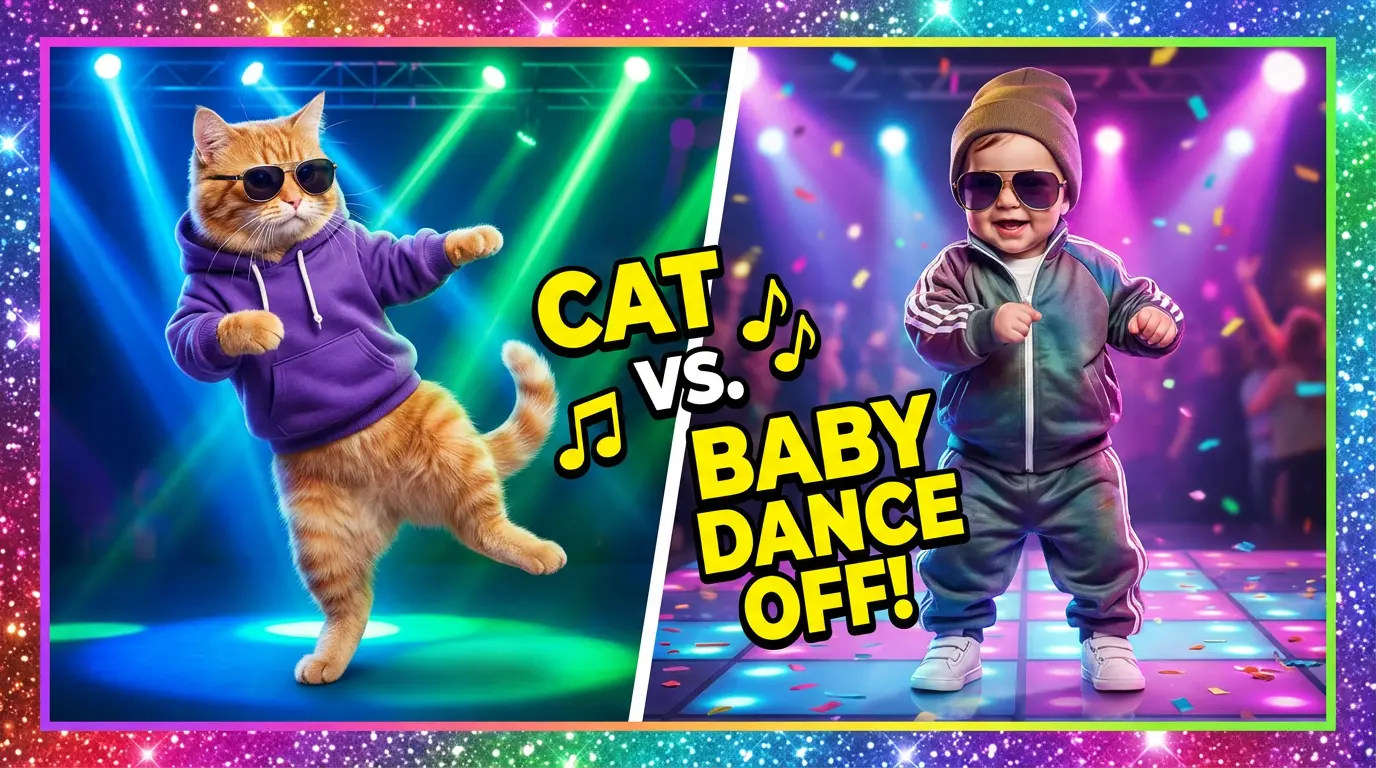
Have you seen those adorable videos of a cat in a tiny hat or a baby in sunglasses dancing perfectly to the beat? These "Dancing Cat" and "Dancing Baby" clips are taking over TikTok, Instagram Reels, and YouTube Shorts, racking up millions of views.
If you’ve been wondering how to join the trend, the secret is out: AI Video Generation. With the right tools, you don't need animation skills—just a single photo. Today, we’ll show you how to use Evoke's AI video engine to turn your pets or kids into viral dance stars.
What is AI Video Generation? The Magic of Animating Photos
Quick Answer: AI Video Generation is a technology that uses deep learning models to transform static images into dynamic, moving videos. Using the Evoke app, you can upload a photo, select an animation template, and generate a smooth 1080p video in just 30-40 seconds. It makes professional-grade animation accessible to everyone.
Key Takeaways
- Speed: Videos are typically generated in 30-40 seconds.
- Quality: High-definition output up to 1080p in MP4 format.
- Technology: Powered by Evoke's mobile-first animation engine.
Why is the "Dancing Cat & Baby" Trend Viral?
This trend has exploded because it combines "cuteness" with "unexpected talent."
- High Character Consistency: Unlike early AI videos that were glitchy, Evoke's video engine keeps the exact look of the cat or baby while only changing their movements.
- Rhythm Matching: The AI aligns the dance moves perfectly with the background music's beat.
- Zero-Budget Production: What used to take professional animators weeks now happens in seconds on your phone.
How to Make Your Own Dancing Video: Step-by-Step
Creating your viral hit is easier than you think. Just follow these three steps:
Step 1: Prepare Your Photo
Choose a clear photo with the subject (your cat or baby) in a full or half-body shot. A clean background helps the AI identify limbs and movements more accurately.
Step 2: Upload to Evoke
Open the Evoke app and select the “Animate” (or "Make Photo Move") feature. Upload your chosen image.
Step 3: Generate & Export
Hit generate and wait about 40 seconds. Evoke's AI video engine analyzes the photo's structure and applies the dance logic. Once you’re happy with the preview, export it as a 1080p video.
Preview the dance reels
Evoke's Video Engine: The Magic Behind the Moves
While many AI video tools like Kling or Luma AI exist, Evoke’s mobile-friendly video engine is optimized for slick performance and character stability.
| Feature | Evoke | Industry Average |
|---|---|---|
| Generation Time | ~40 Seconds | 2-5 Minutes |
| Character Consistency | Exceptional | Moderate (prone to warping) |
| Resolution | 1080p | 720p |
| Ease of Use | 1-Click Template | High (requires complex prompts) |
Key Tips and Limitations
To get the best results, keep these factors in mind:
- ✅ Best For: Single subjects (one cat or one baby) provide the smoothest animation.
- ✅ Lighting: Good lighting in the original photo significantly improves the final video quality.
- ❌ Complex Scenes: Large groups or very cluttered backgrounds may confuse the AI.
- ❌ Occlusion: If the subject’s limbs are heavily hidden in the photo, the AI might struggle to reconstruct the dance movement perfectly.
FAQ
How to animate a photo and keep it clear?
For the best results, use Evoke's “Enhance” feature to sharpen your photo before animating it. The video generator will inherit this higher resolution, ensuring a crisp 1080p result.
Is Evoke AI Video Generation free?
Evoke offers a free tier for users to experiment with. For those wanting the fastest generation speeds and highest resolution, a Pro subscription is available.
Can I use the generated videos for commercial purposes?
Please refer to Evoke’s Terms of Service. Generally, users have rights to the content they generate, but we recommend caution when using copyrighted music for large-scale commercial use.
Ready to go viral? Join the AI dance revolution. Download Evoke on Google Play and start creating today.
Evoke Team
AI technology experts passionate about bringing cutting-edge solutions to users worldwide.